
Introduction
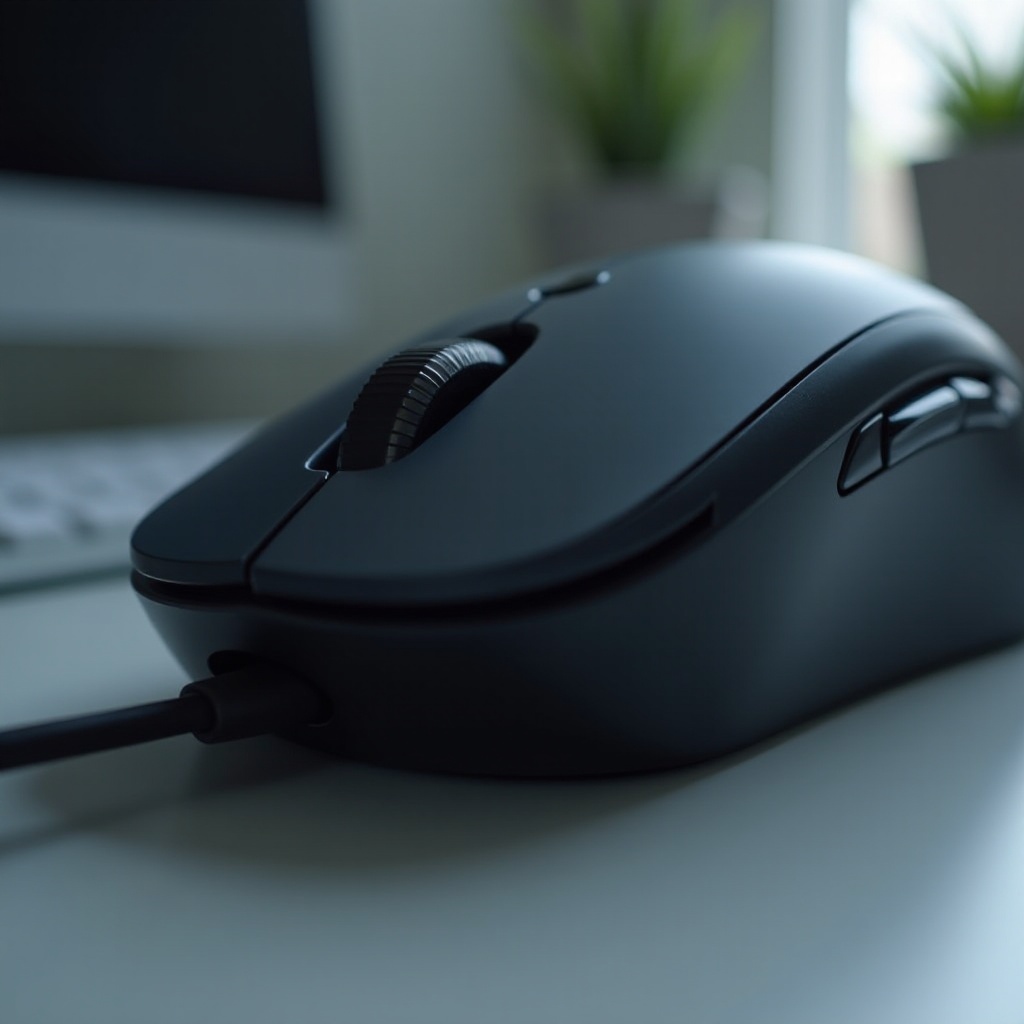
Dealing with a malfunctioning Logitech mouse roller can be highly frustrating, especially in the middle of critical tasks or gaming sessions. Such a disruption not only hampers productivity but also affects your overall experience. However, many of these issues can be quickly resolved with some practical troubleshooting steps. This guide aims to provide a thorough understanding of the typical challenges associated with the Logitech mouse roller and how to address frequent problems efficiently. From identifying the issue to employing advanced troubleshooting techniques, we aim to help your mouse scroll smoothly again in no time.
Understanding the Logitech Mouse Roller
To effectively troubleshoot a Logitech mouse roller issue, it’s vital to comprehend its operational mechanics. The mouse roller, commonly referred to as the scroll wheel, is an essential component for navigating documents and web pages, offering seamless scrolling experiences. Logitech mice are renowned for their fluid scrolling features, appealing to users across personal and professional spheres.
Logitech’s technological advancements ensure their mice are sensitive, responsive, and built to endure extensive usage. However, like all hardware components, the scroll wheel can suffer from wear and tear, potentially leading to malfunctions. By understanding the core functions and frequent issues, you can significantly simplify the troubleshooting process.
Diagnosing the Problem
Signs of a Malfunctioning Roller
Recognizing signs of a problematic Logitech mouse roller is the first step in troubleshooting. Look for these indicators:
- The roller feels loose or unresponsive.
- Erratic scrolling behavior.
- The scroll wheel moves, but nothing happens on your display.
- Strange noises during scrolling.
Identifying Software vs. Hardware Issues
Distinguishing between software and hardware problems is crucial for effectively addressing the roller malfunction. Software issues typically stem from driver conflicts, while hardware issues might involve physical damage or dirt.
Test the mouse on another device to determine where the problem lies. If it functions normally, the issue is likely software-related with your original device. Conversely, if the problem persists, you’re probably dealing with a hardware issue.
Quick Fixes and Initial Troubleshooting
Reboot and Reconnect
- Disconnect your mouse from the computer.
- Restart your computer to refresh its system settings.
- Reattach the mouse to ensure a secure connection.
Simple as it sounds, these steps can often rectify temporary glitches causing roller issues.
Clean the Roller and Mouse
Dirt and debris accumulation could hinder the roller’s performance, making cleaning a fast solution:
- Power down your mouse and remove the battery if applicable.
- Use compressed air to expel dust from the roller.
- Clean the scroll wheel gently using a cotton swab dipped in isopropyl alcohol.
- Dry the mouse thoroughly before testing it again.
Software and Driver Solutions
Updating Logitech Drivers
Outdated or corrupted drivers might lead to roller malfunctions. Keeping drivers updated ensures better performance:
- Visit Logitech’s support page for driver downloads.
- Download the latest drivers specific to your mouse model.
- Install them and restart your computer.
Checking Operating System Settings
Confirming that your operating system is appropriately configured is critical:
- Navigate to ‘Devices’ in your computer’s settings.
- Locate your Logitech mouse and explore additional settings.
- Adjust scrolling options to evaluate the roller’s functionality.
Advanced Troubleshooting and Repairs
Disassembling the Mouse for Cleaning
If initial cleaning proves ineffective, deeper inspection may be warranted:
- Carefully unscrew the mouse using a precision screwdriver.
- Check the internal components for dust and potential damage.
- Clean all parts thoughtfully and reassemble the mouse.
Replacing Defective Parts
When damages exist in specific parts, replacement might be necessary:
- Identify the damaged component such as the scroll wheel or internal circuitry.
- Purchase replacement parts from reliable sources.
- Use detailed guides or enlist professional help for part replacement.
Preventive Maintenance Tips
Adopting preventive maintenance can lengthen the lifespan of your mouse and prevent future issues:
- Consistently clean your mouse and work area.
- Keep food and drink away to reduce spill risks.
- Regularly check for driver updates to maintain optimal performance.
- Store your mouse properly when unused to avoid physical damage.
Conclusion
Effectively tackling a Logitech mouse roller not working involves understanding the device, identifying possible issues, and applying proper solutions. Following the troubleshooting steps in this guide, your mouse should be operational again with minimal fuss. Adhering to preventive maintenance practices will also help avoid many issues down the line, making it a wise addition to your routine practices.
Frequently Asked Questions
How can I prevent my Logitech mouse roller from malfunctioning?
Regularly clean your mouse and workspace, ensure your drivers are up-to-date, and avoid rough handling to prevent wear and tear.
What should I do if cleaning doesn’t fix the roller issue?
If cleaning doesn’t resolve the issue, try updating or reinstalling drivers, and consider hardware inspection for potential replacements or professional repair.
Are there alternative solutions if the roller remains faulty after troubleshooting?
Consider contacting Logitech support, exploring warranty options, or replacing the mouse if persistent issues disrupt your productivity significantly.