
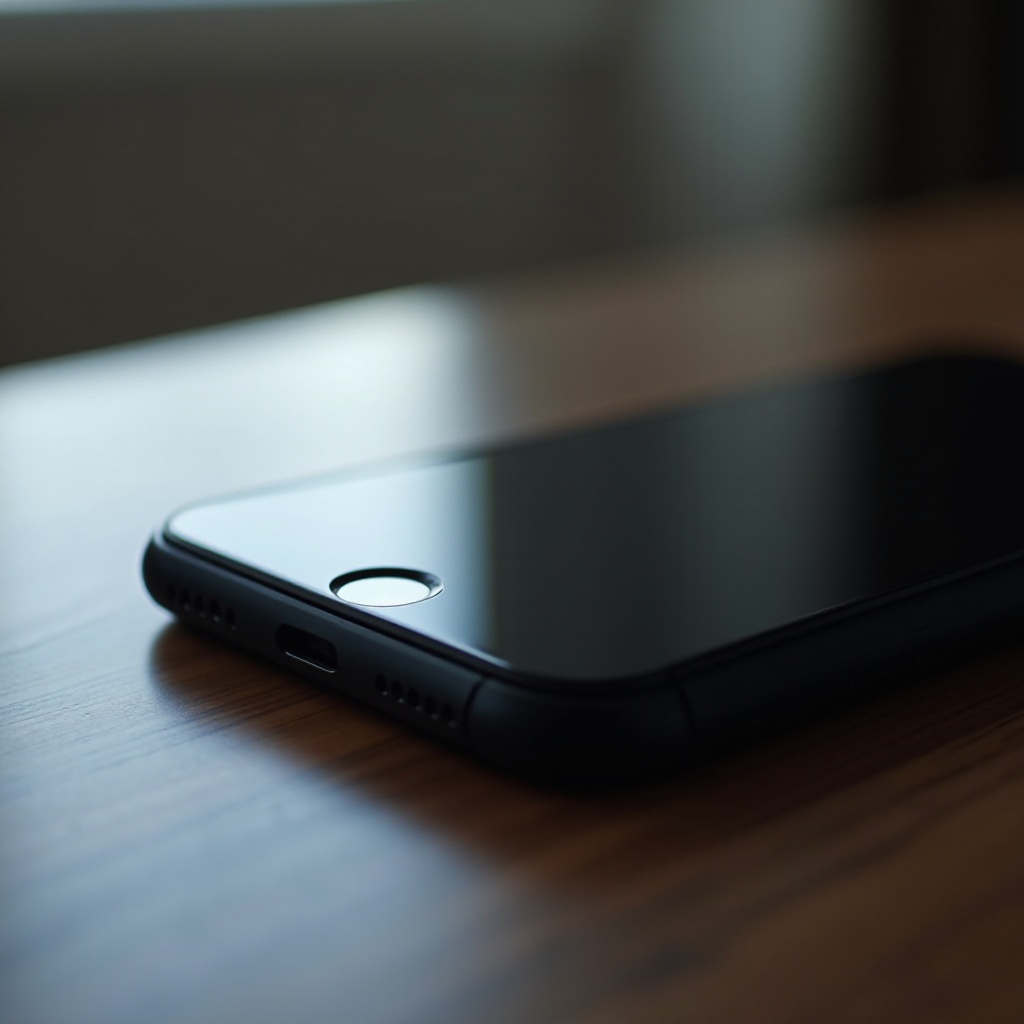
Introduction
Dealing with an iPhone that has an unresponsive screen can be incredibly frustrating. Whether it’s a result of hardware failure, accidental damage, or software glitches, knowing how to power down your iPhone when the screen stops working is crucial. A simple reboot might be all it takes to resolve the issue, but it’s vital that you first learn how to turn off your device. This article will explore a range of methods to turn off your iPhone despite a malfunctioning screen, ensuring you retain control and prevent potential data loss or further complications. We will look into the causes, methods, alternatives, and preventive measures to give you all the necessary tools for managing your iPhone efficiently.
Common Causes of Unresponsive iPhone Screens
Understanding why an iPhone screen becomes unresponsive is the starting point for addressing the issue. The most common culprit is physical damage. Accidental drops or exposure to moisture can severely impact the screen’s functionality. Another frequent issue is software malfunctions, which may occur if your iPhone’s operating system is buggy due to outdated versions or interrupted updates. Intensive apps can also overload the system, leading to screen freezes. By pinpointing these causes, users can take preventive measures and apply the most suitable solutions to resolve screen issues.
Recognizing these issues allows us to better explore methods for turning off your iPhone even when its screen falters.
Using Physical Buttons to Turn Off Your iPhone
If your iPhone screen is unresponsive, the physical buttons provide a direct way to shut down your device.
Steps for iPhone Models with Face ID
- Press and hold the Side button together with either of the Volume buttons simultaneously.
- Keep pressing both buttons until the power-off slider appears.
- Drag the slider to turn off your iPhone.
Steps for iPhone Models with Home Button
- Press and hold the Top (or Side) button located on the right side of your device.
- Release it once the power-off slider appears.
- Drag the slider to turn off your iPhone.
These methods offer a straightforward way to power down your iPhone, but if the buttons fail to respond, there are other innovative solutions available.
Utilizing Accessibility Features
Apple’s accessibility features can be incredibly helpful if you’re struggling with an unresponsive screen.
Enabling and Using AssistiveTouch
- Navigate to the Settings on a functioning iPhone and go to Accessibility.
- Enable AssistiveTouch; you’ll see a floating button appear.
- Tap the button, choose ‘Device,’ hold ‘Lock Screen,’ then drag the power-off slider to shut down your iPhone.
Using Voice Control for Shutdown
- Activate Voice Control through Siri by saying, ‘Hey Siri, turn on Voice Control.
- Once enabled, say, ‘Turn off my iPhone.’ Follow the verbal prompts to complete the process.
These accessibility solutions offer alternative ways to manage your device, minimizing the stress of dealing with an unresponsive screen.
Alternative Methods for Powering Off
If conventional methods are ineffective, alternative ways can efficiently turn off your iPhone.
Using a Computer via iTunes/Finder
- Connect your iPhone to a computer using a USB cable.
- Open iTunes on Windows or Finder on a Mac running macOS Catalina or later.
- Select your device when it appears.
- If prompted, perform a backup or update, which might reset and power off your device.
Remote Shutdown with iCloud
- Access iCloud.com from any internet-enabled device.
- Sign into your Apple ID account and select ‘Find iPhone.
- From the ‘All Devices’ menu, select your iPhone.
- Click ‘Erase iPhone’ to reset and power down your device remotely.
These methods ensure you have control, even when your device screen is non-functional.
Preventive Measures for Future Issues
Taking preventive steps can significantly reduce the risk of your iPhone screen becoming unresponsive. Use durable cases and screen protectors to guard against physical damage. Keep your iOS updated to avoid software-related screen freezes. Avoid downloading unverified apps that demand high resources which could overload your phone. Regular maintenance and careful use will ensure your iPhone remains in good condition.

Conclusion
Handling an iPhone with an unresponsive screen doesn’t have to be a daunting task. Whether using physical buttons, exploiting accessibility features, or employing alternative methods, multiple options are available to regain control. Keeping your phone protected and up-to-date can prevent future problems. Use this guide any time you face a similar situation to keep your device running smoothly.
Frequently Asked Questions
What should I do if my iPhone doesn’t respond to button presses?
If your iPhone won’t respond to button presses, try a force restart, use AssistiveTouch, or employ Voice Control to turn off the device.
Can I shut down my iPhone using Siri if the screen isn’t working?
Siri cannot directly turn off the device, but can enable Voice Control, which allows you to vocally execute a shutdown.
Is it safe to frequently use force shutdowns on my iPhone?
Frequent forced shutdowns are not advisable, as they can lead to data corruption or software issues. Use them sparingly and only as a last resort.