
Introduction
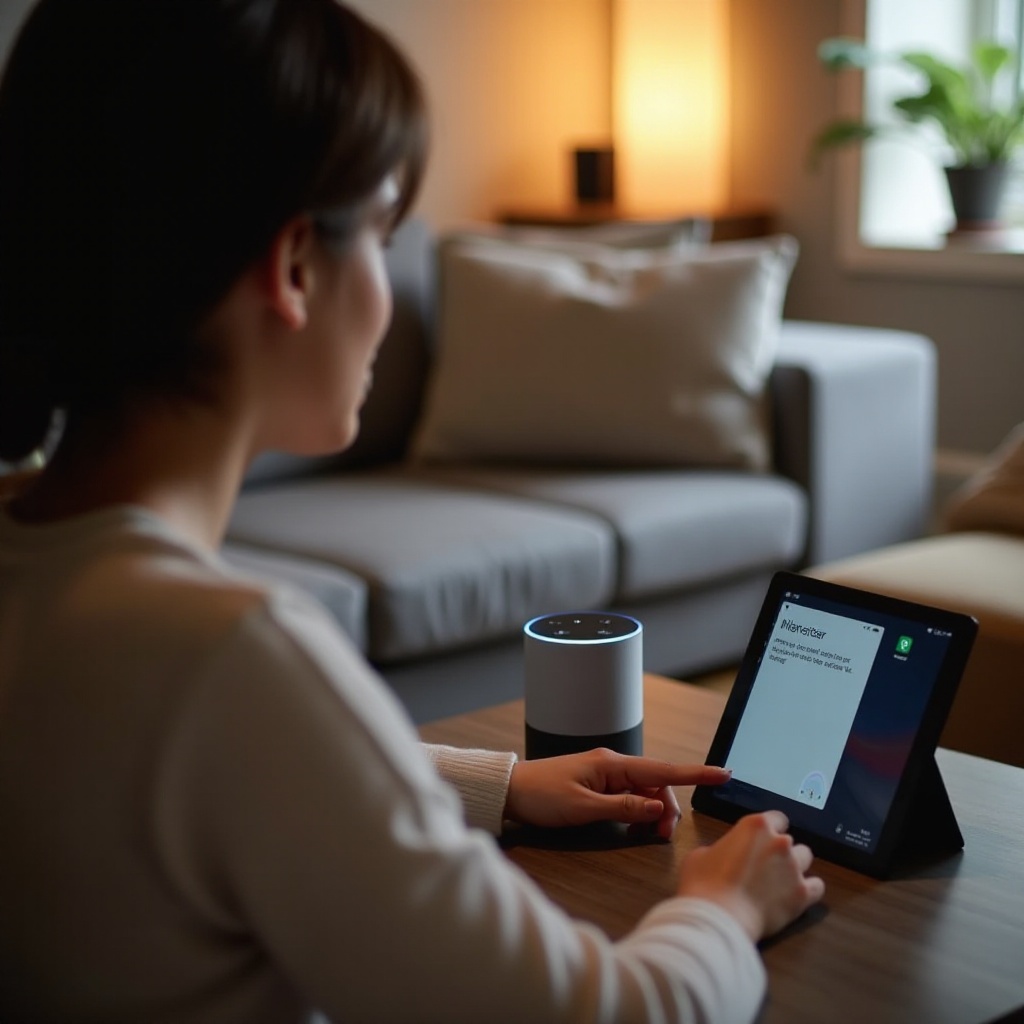
Alexa notifications are designed to keep you informed with timely reminders, messages, and various updates. However, constant alerts can sometimes disrupt your peace. If you’re seeking a quieter environment or simply wish to control when and how you receive these notifications, understanding how to turn them off is essential. This guide will provide you with detailed steps to manage notifications on your Alexa devices effectively, allowing for a personalized and calm smart home.
Understanding Alexa Notifications
To control Alexa notifications effectively, it’s important to recognize the different types that are available. Alexa offers an array of alerts including reminders, messages, package delivery updates, and notifications from a variety of skills. While these are intended to enhance the user experience, an overload of notifications can be overwhelming. Identifying the source and type of notifications you receive is the first step towards customizing and managing them to fit your needs.
Notifications are activated by default to provide value across reminders, calls, messages, drop-ins, and announcements. Once you recognize these types, it will be easier to decide which notifications you want to keep and which to disable, tailoring your interaction with Alexa.

Steps to Turn Off Alexa Notifications
With an understanding of your notification types, you are now ready to adjust or turn off these alerts:
- Using the Alexa App:
- Launch the Alexa app on your mobile device.
- Select the ‘More’ icon at the bottom.
- Navigate to ‘Settings’.
- Tap on ‘Notifications’ to access a list of apps and skills that push notifications.
-
Select each notification source and toggle off the notifications you wish to mute.
-
Directly via Echo Devices:
- Use voice commands for quick control by saying, ‘Alexa, turn off notifications’.
- For detailed adjustments, ask ‘Alexa, open my notification settings’ and follow the on-device instructions.
By employing these approaches, you can efficiently manage which notifications to receive, maintaining a more tranquil environment.

Customizing Alexa Notification Settings
If completely disabling notifications isn’t what you seek, fine-tuning them to better suit your preferences might be the solution. Fine-tuning helps balance receiving essential alerts while minimizing interruptions.
- Adjusting Notification Preferences: Dive back into the settings of the Alexa app to selectively enable notifications for the skills that matter most.
- Setting Up ‘Do Not Disturb’ Mode: To avoid disturbances at specific times, activate this mode:
- Simply say, ‘Alexa, turn on Do Not Disturb.
- Or, navigate via the app, find your device settings, and set the ‘Do Not Disturb’ schedule to align with your routine.
- Using Quiet Hours Effectively: For precise control, set quiet hours in:
- ‘Settings’, selecting ‘Device Settings’.
- Pick your device, tap ‘General’ to configure quiet hours tailored to your needs.
Customizing these settings ensures you only get notified when it’s convenient for you, enhancing your overall experience.
Troubleshooting Common Issues
Even with these settings, you might face challenges with disabling Alexa notifications. Here are some troubleshooting tips:
- Check Wi-Fi Connection: A steady connection is crucial for syncing settings with your Alexa device.
- Update Alexa’s Software: Outdated software can prevent changes from applying correctly. Regularly check for updates using the Alexa app.
- Restart Your Device: Simply unplug your device for a few seconds and plug it back in to reset any persistent issues.
These solutions typically resolve common challenges, ensuring your settings are applied smoothly.
Advanced Notification Settings on Echo Devices
If you wish to delve deeper into Alexa’s capabilities, exploring advanced settings may provide additional control:
- Personalizing Alerts for Efficiency: Enable voice profiles for each user who interacts with the device. This feature allows Alexa to personalize responses and notifications based on who is speaking.
- Managing Third-Party App Notifications: Use the app settings to drill down into individual apps and skills, deciding which are allowed to send alerts. This helps prevent unwanted interruptions from non-essential sources.
Embracing these advanced settings facilitates creating a smart home experience that aligns closely with your lifestyle.
Conclusion
Effectively managing Alexa’s notifications allows you to foster an environment free from unnecessary interruptions. By following the steps outlined, utilizing customization options, and employing advanced settings, you’ll gain full control over your Echo devices. Regular reviews will ensure your settings keep pace with your changing needs, enabling a seamless and serene smart home experience.
Frequently Asked Questions
How do I silence Alexa notifications at night?
Activate ‘Do Not Disturb’ mode during your sleeping hours via the Alexa app to ensure uninterrupted rest.
Can I turn off Alexa notifications for specific apps only?
Yes, navigate to the ‘Notifications’ tab in the Alexa app and toggle settings for individual apps and skills.
What should I do if Alexa notifications keep turning back on?
Ensure your device software is updated, and check for any app-specific settings that might override general settings. Restarting the device can also resolve persistent issues.